How to Turn On/Turn off Safe mode on Tumblr iPhone App, iPad App
Tumblr is a Social networking and microblogging site for all Categories and Topics users.
Looking to Turn off Safe Mode on Tumblr?
Get Here How to.
Tumblr users can share and post relative informationthrough website URL or Text/Image/Video share amazingly. Let's start the epic journey with Tumblr. If you want or don't want your contentshow in 18+ result or offset keywords set but Tumblr.
Turn off safe mode that removes all the security or if you think your content should be blocked for the Sensitive material or Search, keep it turned on.

Read also: How to Tell if Someone Has Blocked You on Kik Messenger 2018
Steps for Enable/ Disable safe mode on Tumblr on iPhone, iPad
Tumblr app should installed for find related settings in iPhone settings app.
Step 1: Go to the Settings app on the iPhone/iPad or iPod.
Step 2: Next, Scroll down to the bottom and Find “Tumblr.” See different Tumblr settings included “Safe Mode.”

Step 3: Tap on Safe Mode > Hide all Sensitive Content.
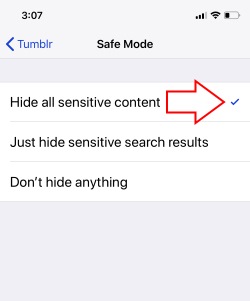
For Disable Safe Mode
Go the Steps below and Find “Don’t hide anything” under the Safe Mode.
Also should be changed in Tumblr Web settings
Your iPhone settings don’t overwrite or replace with the Web users. You need to improve or Enable Safe Mode manually from Tumblr account settings.
Open Tumblr on your Mac or PC browser.
Login with Tumblr Username and Password
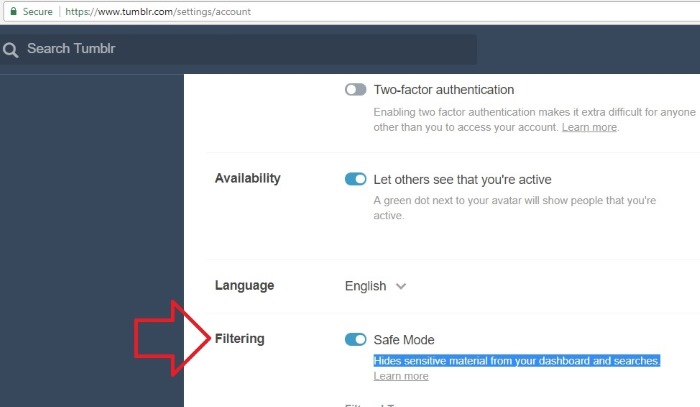
Find Filtering option: Safe Mode.
Enable this option we can “Hide Sensitive material from your dashboard and Searches.”
If this option is enabling, you will get the message like “This Tumblr may contain sensitive media. Safe mode is on”.
Wrap Up
Tumblr secure the privacy and users data. Let’s make customized it and use different account level for actual power and auto filter from spam activity and users.
If you lost important data on iPhone, you may use Gihosoft iPhone Data Recovery to directly recover from iPhone, or use the iTunes Backup Extractor to export data from iTunes backup.

Free iTunes/iPhone Backup Extractor for iPhone, iPad
Jihosoft iTunes Backup Extractor is a powerful tool to recover and extract important data from iPhone, iPad & iPod touch backup on Windows or Mac.
Sponsor Ads:
Gihosoft Android data recovery Free is a super awesome software specialized in Android file recovery. With this program, you are able to recover deleted photos, music, videos, messages, contacts, call logs, WhatsApp messages, Viber chat history and more from Samsung, Huawei, LG, HTC, Motorola, Google, Oneplus, Sony, Lenovo, ZTE and other Android devices directly. Meanwhile, this Android data recovery software is available for both Windows and Mac platforms.


Great Information sharing .. I am very happy to read this article .. thanks for giving us go through info.Fantastic nice. I appreciate this post. Apple App Development Company
ReplyDeleteI am very impressed with your post because this Vectric Aspire Crack is very beneficial for me and provide a new knowledge to me.
ReplyDeleteiPhone Backup Extractor Crack
EaseUS Todo Backup Home Crack